Friday, April 15, 2016

AX 7 RTW Period Close - A systematic approach to perform Month End & Year End tasks


Hello again after a long gap. I was planning this article on the new but very helpful financial period closure functionality that was added in the AX 7 (New AX) for quite some time now. But, I had to take a break as my grandfather expired recently. A great man he is indeed..93 years old. RIP Grandpa.

Coming back to this article, in AX 2012 we do not have a provision to chalk out the tasks involved in the closing procedure. Although closing is a periodic task, users need to create a physical manual for procedures and no laid out patterns. The closing depended on the user’s memory of the steps in closing rather than a system function.

To alleviate this weakness and provide a clear-cut step by step methodology that is pre-configurable by the organizations depending on the type of closing (Monthly, Yearly etc.,) the persons responsible for closing and the timeline for closing procedures to be completed.

Microsoft has also come up with a Workspace for Financial Period Close in the New AX (By now most of you must be familiar about the workspaces in the latest version of AX) that can be accessed by the users with a list of tasks that needs to be performed by the specific user.

AX allows multiple configurations for Closing such as Monthly closing, yearly closing, Inventory closing and all of these can be different sets and mutually independent of each other.

Configuring the Period close: Let us first create a configuration set for Month end closing in AX 7

Go to General ledger > Period Close > Financial period close configuration


AX 7 General Ledger Menu- Financial Period close

 
The following configurations has to be made in order to initiate the closing.

1. Calendars: Calendars refer to the period when the closing exercise has to be initiated. For example for the month of March – 2016, the closing tasks will be done from 31st March until 5th April. The below screen shows how to create the calendars for closing tasks
a. Click on the Calendars, the calendars form is opened as below:

b. Click New to open the drop dialog.

c. In the Calendar field, type a value.
d. In the Name field, type a value.
e. In the Start date field, enter a date.
f. In the End date field, enter a date.
g. Click Create.


The calendar is created as highlighted below:


2.  Closing Roles: The closing roles are used for assigning the tasks to resources (Workers). This is primarily used to group workers in according to the roles they perform during closing:

a.       Click on the Closing roles, the Closing roles form is opened as below:
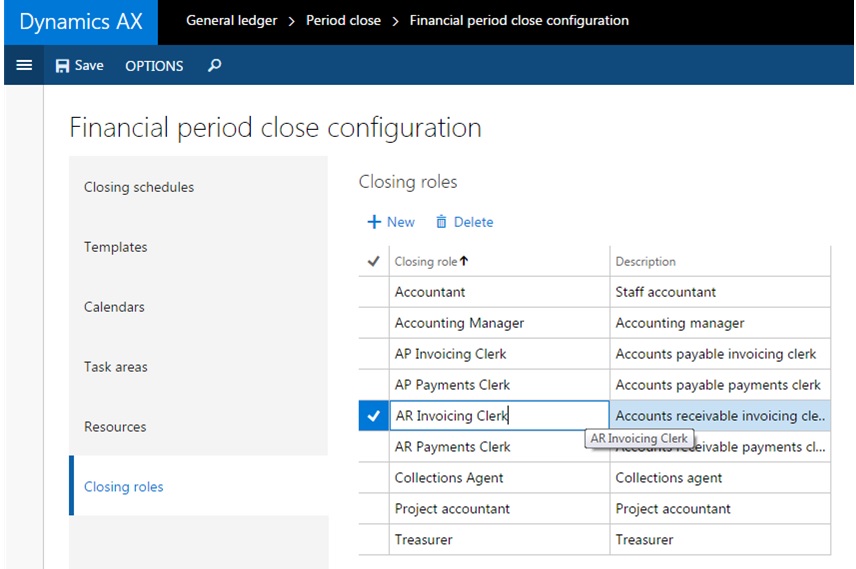

b.      Click New to create a new Closing Role and enter the closing role ID

c.       Enter the description

d.    Click Save to save the role


3. Resources: Resources refer to the workers responsible for closing tasks. Add all the workers responsible for closing tasks and select the type of tasks he can view as below.

a.Click on the Resources, the resources form is opened as below:


b.Click New to create a new worker record

c.Select the worker responsible from the dropdown list


d. In the View the 2 options are available as “All tasks and status” and “Only assigned tasks”. Select as required.

e. Now assign the closing role, and choose the companies the user can perform the closing as below:


4.  Task areas: Task areas are for logical grouping/categorization of the tasks to be performed for closing. For ex: Inventory tasks, AR tasks.

a.       Click on the Task areas, the Task areas form is opened as below:

b.      Click New to create a new Task area

c.       Enter the description and save the record.

5.Templates: all the tasks pertaining to a closing process are defined here. We need to first create a template (For Ex: Monthly Closing) and select the task areas. We can assign the Resources (Workers) responsible for the task, the date and time by which the tasks must be completed (from the date of period end) and the actual link for the Task areas are for logical grouping/categorization of the tasks to be performed for closing. For ex: Inventory tasks, AR tasks.

a.       Click on the Templates and the templates form is opened


b.      In the Drop down Box at the top choose a Template (If you already have one) or Click on “+” button to add a new template.


c.       After the Template is selected, Click on New to add Task areas and to assign tasks

d.      In the “Area” field choose from the list of task areas

e.      Enter the Task Description under “task” field

f.        In the “Due Date relative to period end date” field, choose the number of days after the period close by which the task must be complete (For Ex: Bank Reconciliation must be completed in 2 days after period close, Enter “2”)

g.       In the “Due Time” field enter the time of the day by which the task must be completed

h.      In the “Resource” field choose the worker

i.         In the “Company” Field, select the company for which the task must be performed

j.        For the “Task Link”, you can either choose a URL (for Ex: Management Reporter or Power BI report website link) or a Menu Item of AX 7.


k.       If there is a dependency for the task, in the “Dependency” column select the checkbox. After selecting the checkbox, user must click on the “Set Dependency” to choose all the tasks that are dependent on.


6.Closing Schedule: Closing Schedule is the final task in the configuration. In this we assign the start date and end date, template to be used and the relevant calendar applicable.

a.       Click on the closing schedules, the form opens as below:

b.      Click New and choose a Closing Schedule ID

c.       Enter the Description of the closing Schedule

d.      Enter the Period Start Date and End Date

e.      Choose the relevant Template & Calendar

f.     In the Company Field choose the Company for the closing schedule


In the part-2 of this article, We shall discuss Period close functionality to perform the closing tasks using the Financial Period Work Space


Thursday, February 4, 2016

AX 7 financials, new features, functions and Value adds

It is now official. The newest and most awaited update of the AX (Project Rainier) is officially ready for release and the global virtual launch of AX 7 is scheduled in March 2016. I am sharing a few nuances in AX 7 relevant for Financial Management.

  •   Account structures simplified: Creation of account structures has been simplified in AX 7 and an option to export the account structures to Microsoft Excel is provided. Previously, the creation of account structures is a bit complex and export to excel functionality is not supported. AX 7 also supports viewing all the advanced rule structures and ledgers associated with an account structure at a single place
  •  Journal entries through Excel: This is a considerable relief for many. The AX 7 comes with an app for Microsoft Office. This allows the users to make the entries in excel itself. There is an option available in within the General Journals namely “Open lines in Excel”
  •  Simplified terminology for Item Posting profiles: The technical jargon for the item posting profiles setup such as sales, inventory, purchase and production (in AX 2012) are done with. The new terms used in AX 7 are very simple and directly on to the point and easy to understand from the finance posting perspective.
  • Closing sheet adjustments & closing transactions: The Trial balance list page in AX 7 provides an option to view the closing sheet adjustments and closing transactions in separate columns. This is in a way helps the finance team to better report the adjustments
  •  Layouts for Budget Planning: Previously the budget planning layouts are not available within AX 2012. The user needs to export the budget plans to excel and view information in the required layout. AX 7 provides an inbuilt feature where in the user can create custom layouts on the go as desired for budget plans and view them both in AX 7 (and also in Excel)
  • New Module for Taxes: The taxes are consolidated into a new module and separated from General ledger section. This is a good move. However, there is glitch in the groupings. A new grouping namely indirect taxes is created. Sales Tax & Withholding tax setup is grouped under Indirect taxes. Withholding Tax is not an indirect tax and this grouping seems to have been done with limited foresight. A subject Matter Expert must have been consulted for this new grouping before release of the preview version. Let us hope that Microsoft changes this grouping before the product releases in March.
  • Management Reporter (rechristened as Financial reports): AX 7 has the Management reporter embedded within itself and is renamed as “Financial reports”. a separate integration to MR (Installation of MR & Data mart related stuff) is not required any more unlike being done in AX 2012. However the designer is still required to edit or design a report. The Web based MR means wide availability of reporting and enables reversed tracing to transaction origins.
  •  Filters for Financial reports: The MR reports (now rechristened as Financial reports) come with filters for financial dimensions, attributes (ledger reasons, journal & voucher numbers), scenarios (Actual, cash flow forecasts) and dates. This is a considerable value add, previously this has to be pre-defined on the report design itself
  • Vendor Invoice transactions report includes detailed due day list: AX 7 has a report for Vendor invoice transactions that includes detailed due days. Previously in AX 7 these were 2 separate reports and if a customer requires it as a single report, the partner needs to customise this as per customer’s requirement. 
  •  Changes to Workflow:  The workflow is no more a yellow ribbon in AX 7. It comes as a button within the button grid with the options to Submit, recall, approve etc.,
  • Changes to Organization Hierarchy chart: The newly refurbished Organization hierarchy chart comes with tile view and we can view the chart with calendar date and effective date perspective.
  • Reports generation in PDF format: The regulatory reports are now available in PDF formats as well. The report can directly be generated as PDF. Previously users need to generate the report on the screen and later on export it to PDF. Now this extra step can be avoided.
  • Sales Tax settlement process as a batch: A batch job can be created for the sales tax settlement process. This will be helpful to automate the settlement process. This will be especially helpful for bigger entities having large volumes of transactions. They can schedule a batch to run in the background to complete settlement, thus saving a user’s time.
  • Workspaces: A new concept is introduced in the AX 7, where in users have their workspaces with all the respective content for a user role available on the home screen. The user can perform all his tasks from the workspace. These workspaces are available module wise as well. Some of the important workspaces for finance users are Budget Planning, Ledger Budgets and forecasts, General journal processing, Fiscal year closing, Customer & Vendor Invoicing, Vendor payments etc., and new workspaces can be customised based on requirement.
  •  Improved PowerBI for financial data analysis: The AX 7 provides a function namely “Monitor financial performance”. This is linked to the PowerBI content pack “Dynamics AX – Financial performance”. This eases the deployment of PowerBI into ax for creating powerful financial analysis dashboards.
There are many more functionalities. with the time I will be able to update the users on the new functionalities in AX 7. In the mean time you can also take a look at AX Help (http://ax.help.dynamics.com/)


Thursday, January 7, 2016

Shortcuts in AX 7


Microsoft has released the preview of its latest Dynamics AX 7 (Rainier) for the community. The Public release of AX 7 is available anytime soon (expected in the 1st quarter of 2016).

By now many of you are already aware that AX 7 is web based and is accessed through a web browser. This is a major change from AX 2012 (Desktop based).

Although AX 7 is based on Web. Microsoft managed to fit it with certain keyboard shortcuts to facilitate a user friendly interface. Keyboard shortcuts are very important for an ERP to allow faster data entry by users.
  • ALT+N: Add a new Record
  • ALT+F9: Delete a record (system alerts user about the deletion)
  • F2 : Toggle between Edit to View (or) View to Edit
  • Ctrl+S: Save the record
  • ESC: Close the form (User is prompted if the record is not saved)
  • Back Space : Go to the previous page
  • Tab: Move to the next field
  • Shift+Tab: Move to the previous field
  • Alt+Down Arrow: display the records under a drop down lookup field
  • Down Arrow: Move to the next record (in a list page)
  • Up Arrow:Move to the previous record (in a list page)
  • Alt+Q : Search for Button (for example: while creating a General Journal, user can press alt+q to access button search and search for "Validate" to validate a journal)
 This is it for now. More to come. Keep Daxing

Friday, September 25, 2015

Tips for filtering records in AX 2012

An ERP package in general contains large volumes of business data such as the business customers. in the day to day business, the end users require filtering records as per their needs and the below are some useful techniques for filtering records in AX 2012


I am going to explain you a few shortcuts and filtering techniques to help you do this in AX 2012.

Shortcuts:


  • CTRL+G : Use this short cut to filter columns displayed in a grid for (eg: Customers). When you press CTRL+G the grid displays an additional row for you to key in and filter the records as below: 

  • CTRL+K: Use this short cut to filter a field with the selected value. This filters the records for currently selected column. It displays a dialog box as below, where in the user can choose to filter:


Filtering Tips:

  • Between : You want to look for a record and not sure how the record starts or ends. You can simply use this filtering option in all such cases. If you want to filter a record ABCD but not sure the start & end characters. Simply type *ABCD* you get your data filtered and system displays all the records matching the criteria.
  • Starts With: If you know the starting characters but not sure the ending characters, simply put the starting characters you know and add a * and that gives you the required result. For example, you know the record starts with AB, then simply type AB* and the records matching the criteria are displayed.
  • Ends With: If you know the ending characters (for example: CD), simply add a * in-front and you get the desired records filtered. *CD fetches you all the records ending with the characters CD.
  • Does not Include: If you want to exclude a certain record out of your criteria, you can do so by using an Exclamation mark (!). For example, you do not want the records with ABCD in the grid, simply type !ABCD and all the records with ABCD are excluded from your filter.
  • Between Dates: You are viewing the transactional data in a grid and want to view only the transactional records starting from 1st January 2015 and ending with 31st December 2015. In such a case you can use '..' to serve your purpose. Just type in 01/01/2015..12/31/2015 and the records are displayed between the select date range in your grid.

This is it from me for now. keep a look out for more Tips & Tricks in the coming days.


Saturday, May 30, 2015

AX 7 (Rainier) is fast approaching....What to expect

AX 2015, will be the outcome of the highly ambitious Project Rainier executed with a lot of commitment by the Microsoft Product Development Team that is going to be a reality any time now (Expected to be released by December-2015.)
  • Web Based AX: Yes this will be a reality with Rainier. AX can be accessed on your web browser (not too sure if this is OS independent!). Those of you who have been familiar with Oracle Financials, will already know how handy Web (& JRE) based access to ERP is. The AX client may continue to co-exist. How exciting this will be if this is also OS independent and AX can be accessed even on a Linux machine. (More customers especially in retail, Mfg and services industry will be looking forward to this functionality).
  • More efficient Accounting: The Traditional school believes in traceability of journal entries to the Trial Balance and they least bother of how it happens. But, the Modern school emphasizes on the transformation, connivance & complicity of accounting, rather than just the output.
    Having witnessed the differentiation followed by the Microsoft between 2009 to 2012 in terms of accounting and the more modern concerns such as Transfer Price, Cost pooling etc., we can expect many modern accounting technologies in revenue recognition, cost control, Investments to be integrated.

    The Europe is already implementing IFRS and slowly the countries around the globe are standardizing their accounting policies with either the IFRS or US GAAPs. So, we can expect a paradigm shift in the accounting function to accommodate these standards.

    Rainier-Ax may also address the industry concerns of the SOX controls, Corporate Governance and the like policies across the globe.
     
  • Inter-operability between the Group Companies: The organization is one but broken down into multiple legal entities / companies for the comfort of functioning, due to legal requirements or due to the geographical constraints.
    This however is a hindrance for the business in terms of profitability, efficient functioning, resource sharing, taxation or reporting etc.

    Rainier-AX can try to bridge down this gap in many ways. Replacing the physical boundaries between the companies and imposing a virtual boundary with strong security controls could better the current situation.
     
  • Cloud based and Office 365 integrated: 100% integration with the Office 365 and Microsoft Azure platform is a possibility through Rainier-Ax. ERP would be more of a service rather than a product to compete with NetSuite and the likes.
     
  • Better integration to add-ons developed by ISVs: If Ax needs to compete with the likes of SAP, Microsoft needs to better integrate the add-ons developed by the ISVs with the standard AX framework to ease the delivery schedule.
    Currently, The ISV add-ons need a complete revamp whenever an update is released and this results in a lot of effort. Microsoft may come with a more sophisticated Life Cycle Services Integration Manager to remove this agony.
  • Faster and simpler to implement: This would be fair to expect considering the current difficulties in Ax
Microsoft always aims at simplicity of a product and sure it will definitely plan to make Rainier-AX simpler and faster to implement than its predecessors by providing better tools to move similar data between companies and environments and modules. 
Just like the drastic changes from Ax 2009 to Ax 2012, we can expect a completely refreshed UI and functionality. The faster we adapt to these the more effective we can implement.

Consolidation in AX 2012 - Tips & Tricks


Consolidation of financial accounts of a parent company and its subsidiaries is the need of the hour when a company operates in a globalized scenario

Ax 2012 allows us to consolidate transactions from multiple legal entities (both on AX and out of AX). In the consolidation company, it will be of great utility if we can identify a transaction by the company of origin. 
 It will be of great utility if we can identify a transaction by the company of origin in the consolidated accounts in AX 2012.
Below is a trick which helps us achieve this task in a simple yet powerful manner.
  • Create a financial dimension "LegalEntity" and select use values from "Legal Entity" master. (You need not add it to Ledger or link it to a company)
  • Go to the consolidation Company > Periodic > Consolidate and choose Consolidate (Online)
  • Go to "Financial Dimensions" tab in the Consolidate Online Dialog Box
  • Select the LegalEntity Dimension and choose "Company Accounts" in specification as below:
  • After all the other parameters are filled in, Click "Ok".
That's it your transactions in the Consolidation Company will also list out the "company of origin" as below:


Consolidation in AX 2012, has many such simple but powerful tricks and this series of articles will explore into each such possibility through AX

Strengthening the Supply Chain Management in Ax 2012 r3

Supply chain management is a broad term in regular use ever since AX 2012 is released replacing the erstwhile term "Trade & Logistics" used in versions AX 2009, 4.0 and so on to represent Purchase, Sales and inventory moment activity.
Many of us already understand distribution of a company's product through efficient dealership network and timely logistics supplying these dealerships from the point of manufacture is the key to sales.
Meeting the given demand is a key to a company's success irrespective of how popular or quality of the product is being offered, which makes this network a very key in enhancing a company's sales.
Same is also the factor with the raw material procurement, maintaining the Economic order quantity, re-order levels and minimum order quantity is the key along with many other important business requirements.
Assume an FMCG companies such as Proctor & Gamble or Unilever is planning to implement Microsoft Dynamics AX 2012 to meet their complete business requirements. Can standard Ax meet the business needs of such a big network with thousands of dealerships across the globe?

YES.

The Answer is a Yes with the introduction of the enhanced AX 2012 R3. Let us study various modules (With detailed features for new modules) that enables these key requirements.
Warehouse Management: This module integrates better and improved Warehouse management capabilities into Microsoft Dynamics AX. This provides for real-time handling of inventories at warehouse permitting user of scanners, creating orders for pick and pack, setting up container groups, wave processing. All the requirements of a modern warehouse are provided for in this new module introduced in R3 release

Transportation Management: This module provides for freight movement planning across business. AX provides for centralized and distributed (warehouse / site) level movement. The new features include Advanced load planning, rate and route calculations.

Trade allowance management: There is always a demand for implementing advanced price management functionality in AX. Microsoft has come out with Trade allowance management to solve the pricing riddle.This module can be used to create, maintain, and quickly determine status of trade allowances apart from managing prices and discounts that are offered at various times as part of promotional incentives.

apart from the above new modules a host of existing modules such as Product Information Management, Inventory Management, Procurement and sourcing, Accounts Receivable, Accounts Payable, Sales and Marketing.
Not to limit here the Project management module provides for Product research & development related activities.
Continuous Improvements are fast reinforcing the existing functionality to build a better product for the customers in the form of Microsoft Dynamics AX.

Dynamics AX growing, but a long way to go

In a recent publication from Gartner "Magic Quadrant for ERP" , an attempt to compare the widely accepted ERP solutions globally against the ERP's "Completeness of Vision" and "Ability to Execute" .

The only ERPs qualified as leaders are "SAP Business" and "MS Dynamics AX" (High on both Vision & ability to execute) . Players like Oracle financials, JD Edwards, Infor are high on ability to execute but very low on vision.

A relatively new entrant Epicor 9 assumes greater role with its strong Manufacturing capabilities supported by its relatively powerful supply chain (High on vision, but low in ability to execute).

Dynamics AX is still very far against its competitor SAP Business all in one, in terms of Production and supply chain. But, is building upon to reduce the gap in projects & service management. This gap can be much narrowed with improving performance and functionalities in core areas and aiming at large scale sector